 VideoFree
 Installation
The fastest install in the AI era is one prompt to an agent that can operate your computer — it downloads, launches, and configures everything. Prefer to do it by hand? Every step below maps onto what the agent does for you.
1Let your AI agent install everything (recommended)
Paste this to an agent that can operate your computer (Claude Code, Codex, Cursor, …), fill in your paths, and it handles the rest:
Install and deploy VideoFree on this computer: 1) download the latest release from https://github.com/linpengishero/VideoFree/releases and extract it to [folder] (or clone the repo and install requirements.txt); 2) follow README.md and start it — double-click videofree.bat on Windows, ./videofree.sh on Linux; 3) open http://127.0.0.1:8765 and confirm the workspace loads; 4) my ComfyUI folder is [your path] — check whether it is running, report its address, and start it if it is not; 5) install SageAttention into the Python environment ComfyUI actually uses (check GPU, Python, PyTorch, and CUDA versions first; never upgrade them without asking me); 6) compare against the plugins I want to use and list every missing model and node package with its official download source. If a download needs a login, terms acceptance, or payment, stop and let me handle it.
What the agent takes care of:
- downloading the release or cloning the source, installing dependencies, launching the gateway;
- checking ComfyUI’s status and address, installing SageAttention into the right Python environment;
- diffing each plugin’s
INSTALL.mdagainst your disk and reporting what is missing; - stopping at license gates and paid downloads so you handle them yourself.
Then verify three things yourself:
http://127.0.0.1:8765opens the workspace;- Settings holds your ComfyUI address and it is saved;
- one minimal job (a low-res image or short clip) produces output.
2Prepare ComfyUI, models, and nodes
Every VideoFree plugin already ships its workflow, parameter UI, and model rules. On the ComfyUI side you only need the model files and node packages each plugin declares. Never mix random workflows from the internet into VideoFree plugin folders.
There are two ways to prepare models:
- Let your AI agent download them per plugin (recommended). Each plugin’s
INSTALL.mddeclares the exact model filenames, official download URLs, and target directories. Hand the plugin folder to an agent that can operate your computer (Claude Code, Codex, OpenCode, …) and let it read the file and download what is missing. Full instructions and a copy-paste prompt: Install Plugins. - Download them yourself. Each plugin’s
INSTALL.mdlists the official source for every model — usually a Hugging Face repository. Place the files in the declared subfolders underComfyUI/models/without renaming anything.
Already have ComfyUI: place models under ComfyUI/models/ and node packages under ComfyUI/custom_nodes/, exactly in the declared subdirectories. Do not dump everything into one folder and never rename model files.
No ComfyUI yet: install it from the official site first, then add the files your plugins declare.
Your ComfyUI/
├─ models/        ← model files, keep each subfolder
└─ custom_nodes/ ← node packages, one full folder each3Update ComfyUI and install node dependencies
Back up your configuration, then update ComfyUI to the latest stable version with whatever updater your package provides. If you use ComfyUI Manager, check node package updates there too.
Copying a node folder is not the same as installing it: many packages also need Python dependencies. Let your agent handle this inside the Python environment ComfyUI actually uses. Restart afterwards and watch the startup log for IMPORT FAILED.
4Have your agent install SageAttention
The bundled workflows require SageAttention. It is not a model, and copying a folder does not install it. If you used the master prompt in step 1, your agent has already done this; use this section to (re)install it on its own. Send this to an agent that can operate your computer, and fill in your ComfyUI path at the end:
Install SageAttention for my ComfyUI. First find the Python interpreter ComfyUI actually uses, check GPU, Python, PyTorch, and CUDA versions, then choose a compatible installation method. Do not install into system Python, and do not upgrade PyTorch or CUDA without asking me. After installing, verify that this Python can
import sageattention. If something is incompatible, explain why and propose options. My ComfyUI path is: [your path].
5Start ComfyUI and note its address
When startup finishes, the console shows an address such as http://127.0.0.1:8189. Open it in a browser — seeing the ComfyUI page means it is up. Your port may be 8188 or another number; trust your own log.
Keep the console window open. ComfyUI must stay running whenever you use VideoFree.
6Start VideoFree and connect it
On Windows, extract the full VideoFree release and double-click videofree.bat. For a Linux source deployment, install requirements.txt, then chmod +x videofree.sh && ./videofree.sh. Open the landing page, click Enter workspace, create and open a project, then open Settings from the gear icon in the left toolbar.
The editor plugin also requires FFmpeg: make sure ffmpeg -version and ffprobe -version both succeed in the environment that launches VideoFree. VideoFree does not redistribute these binaries.
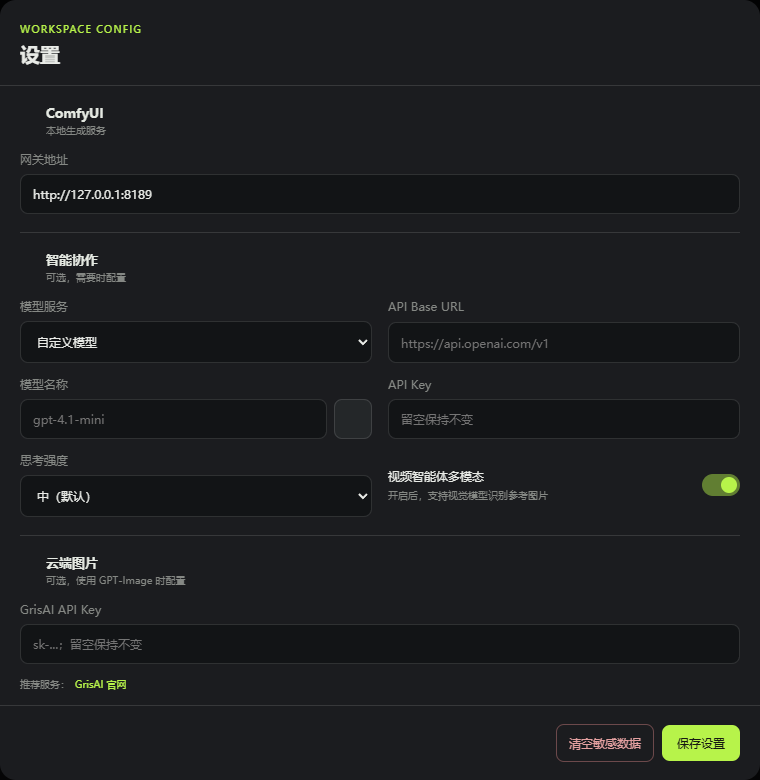
In ComfyUI / gateway address, enter the ComfyUI address you noted, then save. Use 127.0.0.1 when both run on the same machine; otherwise use the LAN IP of the ComfyUI machine.
7Fill in AI settings, create a project, and test
If you need H3 prompt conversion or director collaboration, fill in the AI service URL, model name, and API key in Settings. Cloud GPT-Image generation additionally needs a GrisAI API key; local image generation does not.
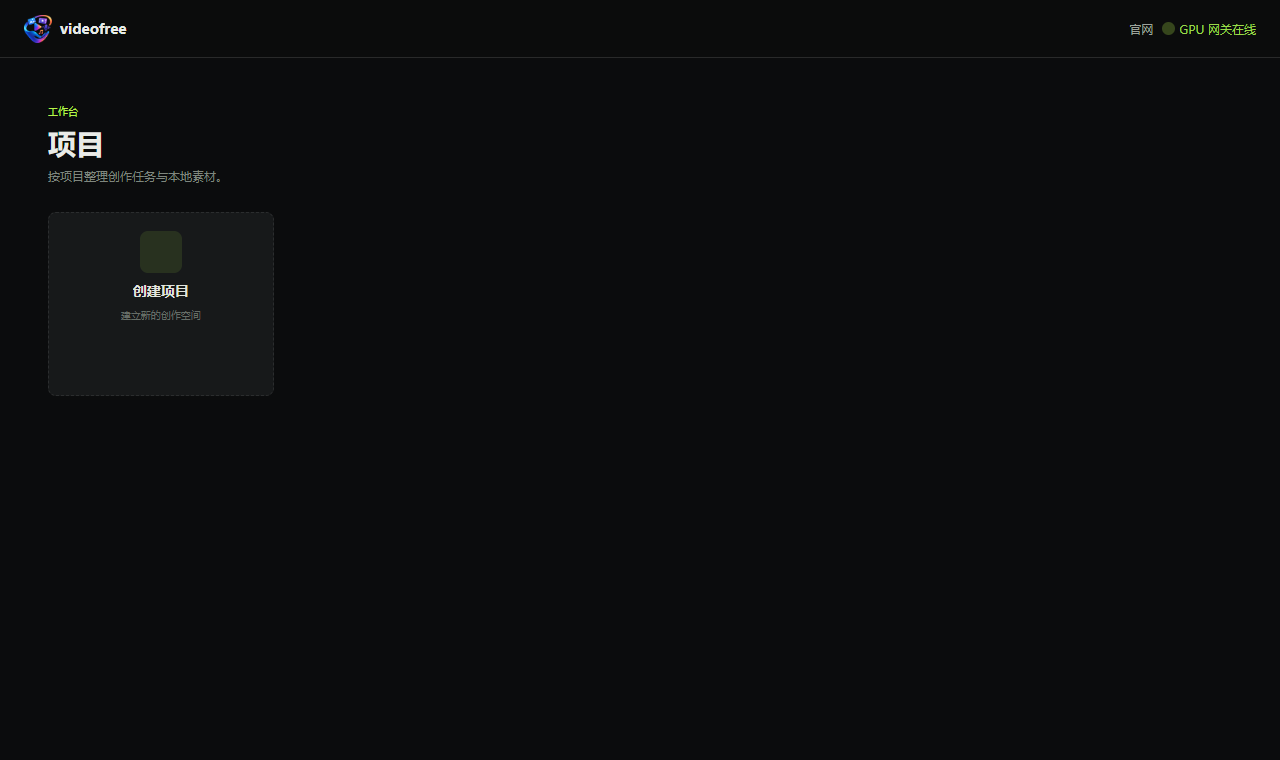
Back in the project list, create a project and generate inside it. Start with a low-resolution image or a short clip to confirm the connection and dependencies before attempting long videos. Media is archived automatically under data/projects/ — no manual syncing with ComfyUI’s output folder.
If something goes wrong
- Missing nodes: a node package is not installed or its import failed. Check the ComfyUI startup log, fix it, restart.
- Missing models: check the filename and subfolder — “I downloaded it” is not enough. See Install Plugins for what each plugin needs.
- Gateway online but generation fails: that only means VideoFree runs; it does not mean ComfyUI is connected.
- Out of VRAM: lower resolution and duration first. Not every model and size runs on every GPU.
- LAN access fails: use the machine’s real IP, never
0.0.0.0. Check the bind address and Windows firewall, and never expose an unauthenticated gateway to the public internet.